“Tiva Timetable For Wordpress” Documentation by “TivaTheme” v1.0
Tiva Timetable For Wordpress
Created: 16/01/2017
By: TivaTheme
Email: tivatheme@cloodo.com
Thank you for purchasing my product. If you have any questions that are beyond the scope of this help file, please feel free to email via my user page contact form here. Thanks so much!
Table of Contents
A) Overview - top
Tiva Timetable For Wordpress is a responsive schedule calendar with clean and modern flat interface. It is very easy to use yet gives plenty of features and styling options. You can use it for any kind of schedule or events calendar.

There are 3 layouts for your choice: monthly view, weekly view or list view.

There are many options for you to customize the calendar.
The product use Magnific Popup javascript libraries (http://dimsemenov.com/plugins/magnific-popup) (MIT license).
B) System Requirements - top
This product is compatible with :
- WordPress : > 3.5
Compatible Browsers :
- IE10
- IE11
- Firefox
- Safari
- Opera
- Chrome
- Edge
C) Installation - top
Step 1: Download the plugin to your local machine as a zip file package.
Step 2: From the backend of your WordPress site, select Plugins » Installed Plugins, then click the Add New button » click Upload Plugin and select the plugin package on your local machine. Then click the Install Now button to install module.
Step 3: After install plugin successful, click Activate Plugin to enable it.

D) Usage - top
In admin site, click menu Tiva Timetable to manage events (Add new, Edit, Delete)

There are 2 ways to use this plugin :
- Widget
- Shortcode
- Widget : To use it as widget, in admin site, select Appearance » Widgets to go to widgets management page. Then drag widget Tiva Timetable into sidebar you want to display. In the configuration area of widget, enter data for fields :

- Title : Title of widget.
- Layout : Layout of calendar (Month/Week/List).
- Mode : Mode for get events (Date/Day). If use Day mode, the calendar will get events via day of week (sunday, monday, ...). This param only take effect on week view or list view.
- Time Navigation : Show or hide Time Navigation on top of calendar (Show/Hide).
- Start Date : Start date on calendar (Sunday/Monday).
- Time On Header : Show or hide time on header of calendar (Show/Hide).
- Navigation Color : Color of Time Navigation on top of calendar. Leave it blank to return default value: #535353.
- Header Background : Background of calendar's header. Leave it blank to return default value: #c594c5.
- Header Color : Color of calendar's header text. Leave it blank to return default value: #ffffff.
- Header Date Color : Color of text present date in header. Leave it blank to return default value: #ffffff.
- Timetable Background : Background of calendar. Leave it blank to make it transparent (follow background of website).
- Today Background : Background of today mark. Leave it blank to return default value: #c594c5.
- Event Color : Color of event name (Apply for month view or list view). Leave it blank to return default value: #535353.
- Event 1 Background : Background of event has color = 1. Apply for week layout. Leave it blank to return default value: #5fb3b3.
- Event 1 Color : Color of event has color = 1. Apply for week layout. Leave it blank to return default value: #ffffff.
- Event 2 Background : Background of event has color = 2. Apply for week layout. Leave it blank to return default value: #6699cc.
- Event 2 Color : Color of event has color = 2. Apply for week layout. Leave it blank to return default value: #ffffff.
- Event 3 Background : Background of event has color = 3. Apply for week layout. Leave it blank to return default value: #f5d76a.
- Event 3 Color : Color of event has color = 3. Apply for week layout. Leave it blank to return default value: #ffffff.
- Event 4 Background : Background of event has color = 4. Apply for week layout. Leave it blank to return default value: #e78b6c.
- Event 4 Color : Color of event has color = 4. Apply for week layout. Leave it blank to return default value: #ffffff.
- Popup Background : Background of popup. Leave it blank to return default value: #ffffff.
- Event Time Color (Popup) : Color of event's time on popup. Leave it blank to return default value: #c594c5.
- Event Description Color (Popup) : Color of event's description on popup. Leave it blank to return default value: #535353.
Note: If you can't select color, please click button Save (on bottom of widget) first.
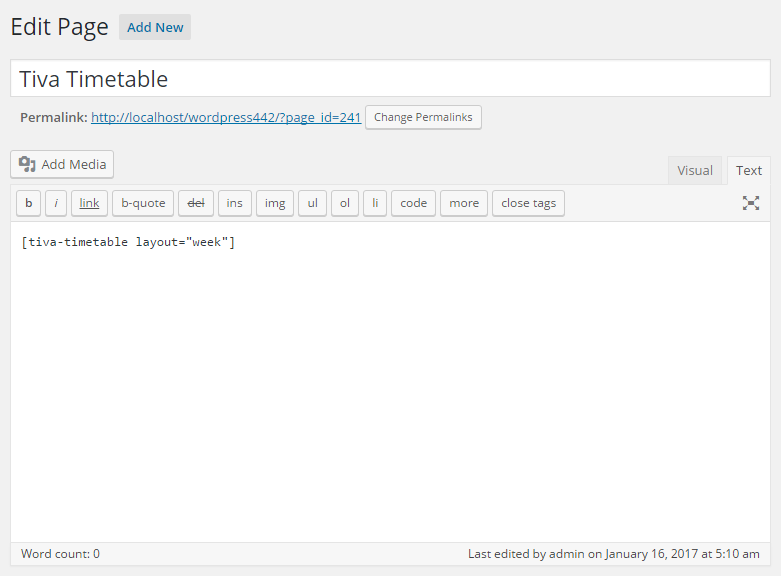
- Shortcode : To use it as shortcode, in admin site, go to area to add shortcode (For example : post). In text editor, enter shortcode :
[tiva-timetable layout="week"].
There are many option params to customize the calendar :
- layout : Layout of calendar (month/week/list). Default value: month.
- mode : Mode for get events (date/day). If use day mode, the calendar will get events via day of week (sunday, monday, ...). This param only take effect on week view or list view. Default value: date.
- time_nav : Show or hide Time Navigation on top of calendar (show/hide). Default value: show.
- start_date : Start date on calendar (sunday/monday). Default value: sunday.
- header_time : Show or hide time on header of calendar (show/hide). Default value: show.
- nav_color : Color of Time Navigation on top of calendar. Default value: #535353.
- header_background : Background of calendar's header. Default value: #c594c5.
- header_color : Color of calendar's header text. Default value: #ffffff.
- header_date_color : Color of text present date in header. Default value: #ffffff.
- body_background : Background of calendar. Default value: transparent (follow background of website).
- today_background : Background of today mark. Default value: #c594c5.
- event_color : Color of event name (Apply for month view or list view). Default value: #535353.
- event_1_background : Background of event has color = 1. Apply for week layout. Default value: #5fb3b3.
- event_1_color : Color of event has color = 1. Apply for week layout. Default value: #ffffff.
- event_2_background : Background of event has color = 2. Apply for week layout. Default value: #6699cc.
- event_2_color : Color of event has color = 2. Apply for week layout. Default value: #ffffff.
- event_3_background : Background of event has color = 3. Apply for week layout. Default value: #f5d76a.
- event_3_color : Color of event has color = 3. Apply for week layout. Default value: #ffffff.
- event_4_background : Background of event has color = 4. Apply for week layout. Default value: #e78b6c.
- event_4_color : Color of event has color = 4. Apply for week layout. Default value: #ffffff.
- popup_background : Background of popup. Default value: #ffffff.
- popup_event_time : Color of event's time on popup. Default value: #c594c5.
- popup_event_desc : Color of event's description on popup. Default value: #535353.
Once again, thank you so much for purchasing this product. As I said at the beginning, I'd be glad to help you if you have any questions relating to this product. No guarantees, but I'll do my best to assist. If you have a more general question relating to the product on CodeCanyon, you might consider visiting the forums and asking your question in the "Item Discussion" section.
TivaTheme